1. Home
  2. Dashboard

Dashboard

At PartsTrader, we’re committed to your success. Our modern UI isn’t just about aesthetics – it’s about unlocking efficiency and empowering your shop to operate more effectively.  

We’ve listened to your feedback and incorporated them in the redesign. We encourage your continued feedback, as it directly influences what we build. Ultimately, we aim to improve your day-to-day, by making parts ordering simple, transparent, and manageable.  

Jobs Page

INTRODUCING THE FUTURE OF PARTS ORDERING 

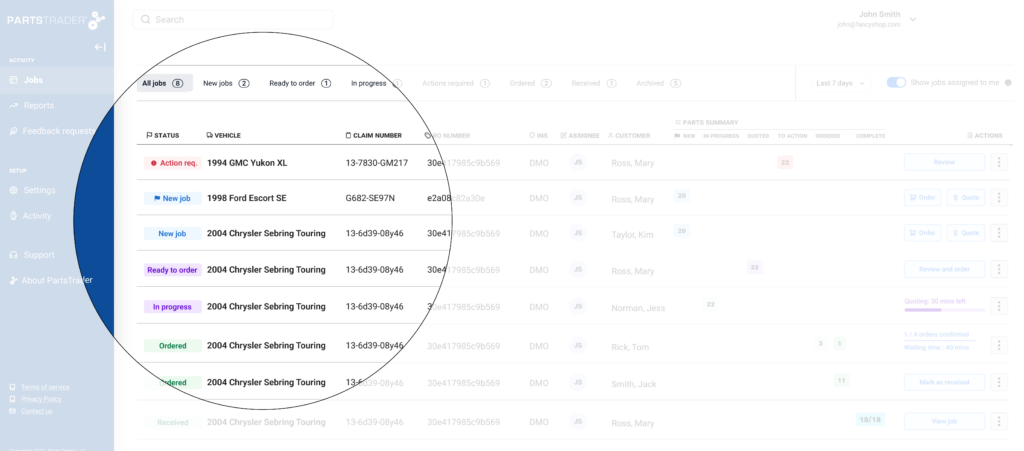
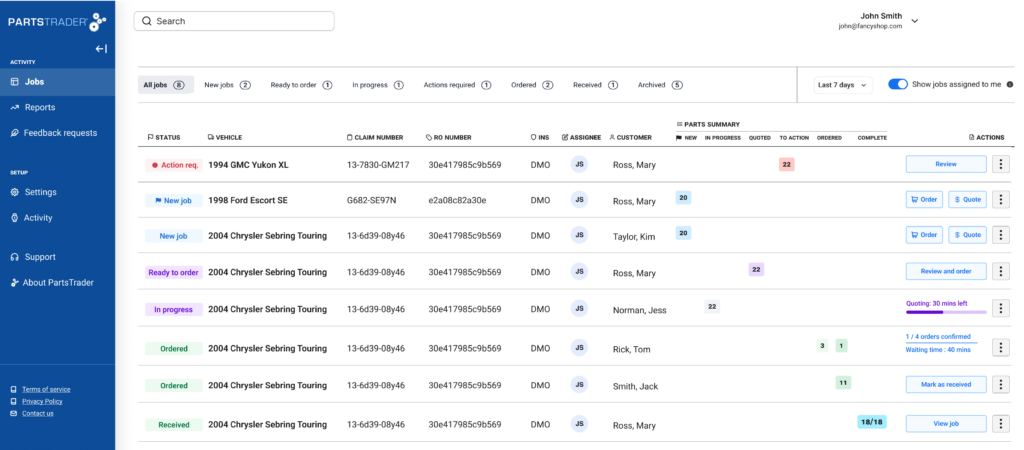
Welcome to the new Jobs Page from PartsTrader. It’s the start of a new modernized look and feel, designed with one goal in mind; to elevate your productivity.  

The new designs provide the user clear visibility over all orders, their status, and any actions required, so orders are delivered on time to ensure a seamless repair process. 
Click to enlarge image

SEAMLESS JOB MANAGEMENT  
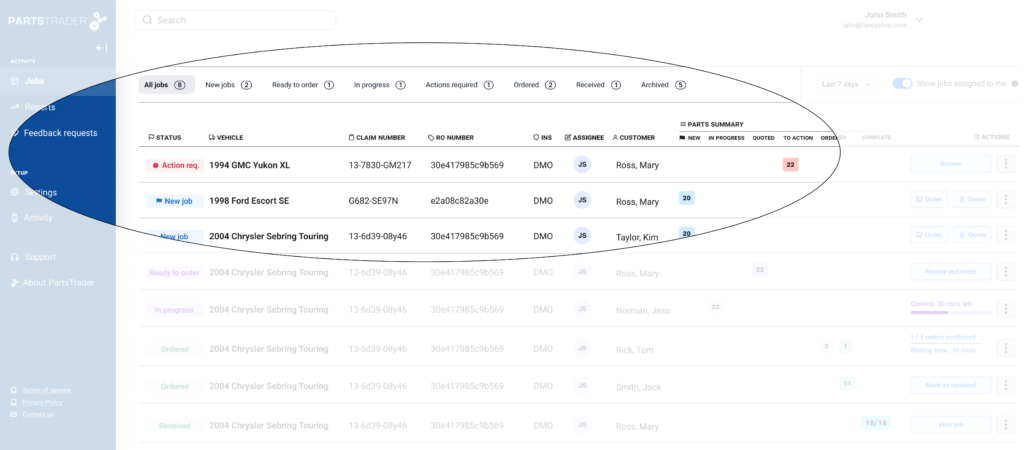
Simplified Workflow: We’ve replaced cumbersome work queues with a single, user-friendly, modern ‘inbox’ for all tasks, reducing time spent navigating through multiple tabs

Click to enlarge image

Improved Efficiency: The new search and filters help manage the job queue. By applying these filters only relevant jobs will show, making it easy to focus and action key tasks.  

Click to enlarge image

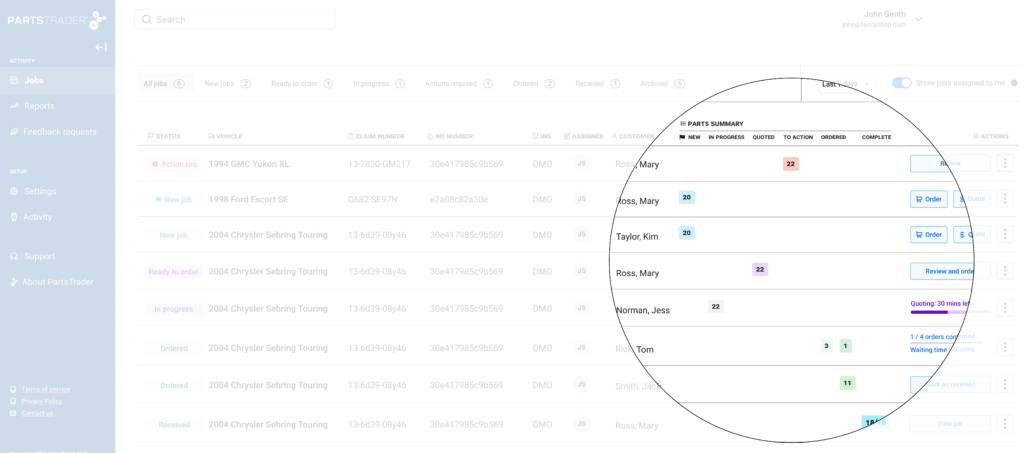
Effective Job Tracking: Easily track the status and activity of orders. Tasks requiring attention are displayed at the top, ensuring timely resolution so nothing gets missed. 

Click to enlarge image

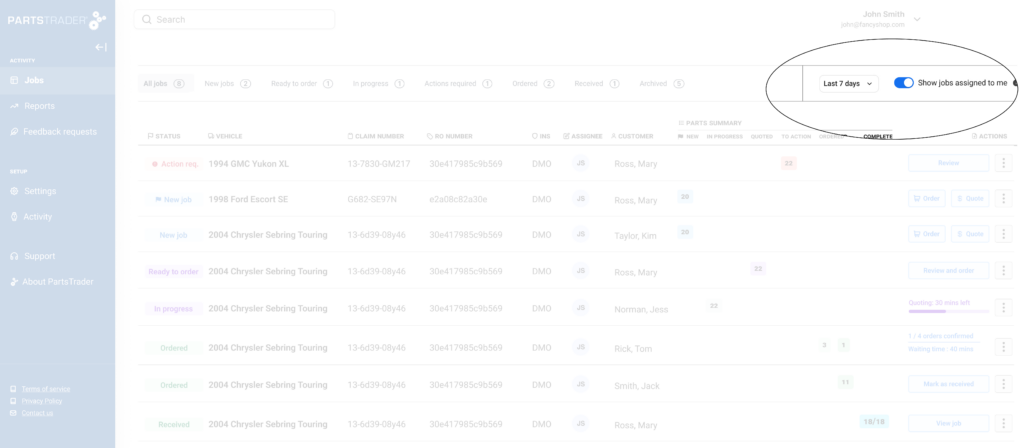
Better Queue Management Tools: Easily see your most recent jobs or just the ones assigned to you. This way, you’ll always have the most relevant tasks right at your fingertips!   

Click to enlarge image

What are statuses and what do I need to pay attention to?
The job status that is displayed to the left of each job indicates the current stage of a job. These statuses help track and manage the workflow, ensuring that everyone involved is aware of where each job stands at any given time.  
 
Key Statuses 
Action Required: This status indicates one of three scenarios:  
1. The vendor can no longer supply.  
2. The vendor has changes to the order that require your attention (based on your company settings).  
3. The quoting period has ended, and there are no quotes from vendors.*  
 
In Progress: This means the parts on the job are out for quote. On the page you will see, how much time is remaining on the quoting window  
 
Ready to Order: Your quote period has ended, and there are quotes from vendors  *  
What’s the difference between job status and part summary?  
Job Status  
The job status indicates the most important action needed on the job. It provides an overview of the overall progress and key actions required for the job as a whole.  
 
Part Summary  
A job can have parts in multiple states, the part summary table shows how many parts are in each state. Clicking on the icon in the part summary table will take you to the most relevant screen to progress those parts.  
 
For a more detailed breakdown of the part summary, visit the Help Center.  
How do I know if the quote window has closed?  
Once the quote window closes, the job status will change to ‘Ready to order’. All jobs that have parts ready to order will display on the ‘all jobs’ tab, or under the ‘Ready to order’ Filter.
What if I can’t see a job on the list?  
All jobs are automatically archived after 30 days. If an old job needs to be worked on again, simply search for it using any relevant job information to find it. How do I make sure the jobs in my dashboard are the most relevant to me?  
 
Archiving  
We understand that some jobs may appear on your dashboard that are not relevant to you and will not be worked on. If you know a job will not progress to an order, you can use the ‘archive’ button to hide it from view. If you or any of your team need to work on that job later, you can still easily find it via the search function.  
 
Assign to me  
Easily assign jobs that you are working on to yourself, this allows you to toggle to see only jobs that are assigned to you. Helping ensure that you only see those jobs that you need to work on  
 
Show only last 7 or 14 days Refine the jobs list even more to only see jobs that have been active in the last 7 or 14 days 

Parts Page
INTRODUCING THE NEW PARTS PAGE 

Our user-centric design means we’ve removed pain points & minimized user effort to tackle your biggest procurement problems. Our systemized assistance brings rules into the platform, meaning you only have to worry about which of the displayed parts to select. Beyond just efficiency, our platform enhances decision-making by providing real-time data and insights, empowering you with the tools you need to make informed, confident choices. 
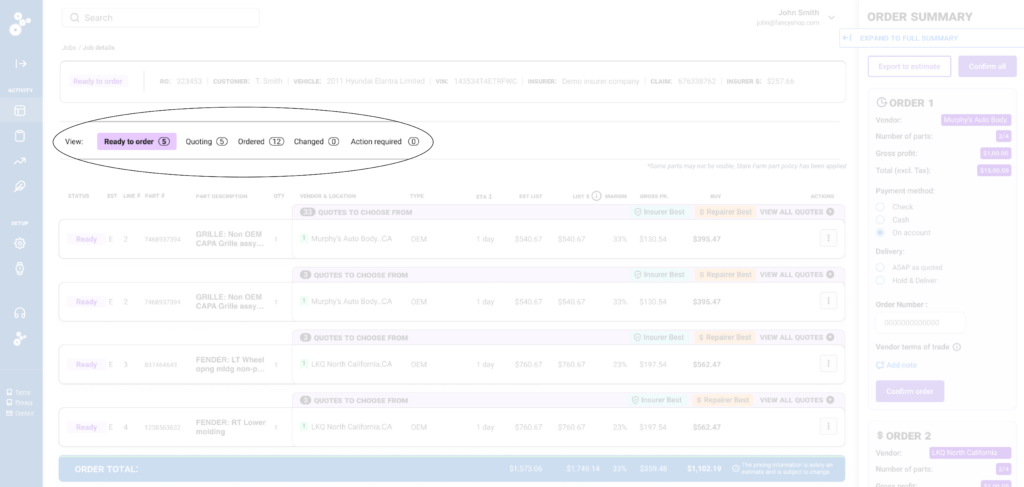
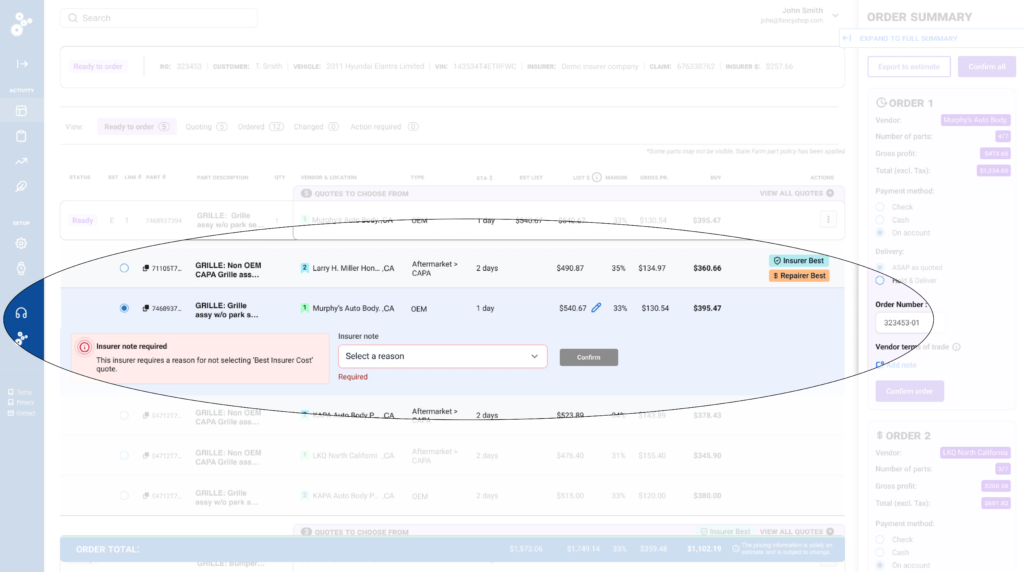
Easily view all of the parts for the job in one place: Perform multiple action from a single space. Now you’ll be able to quote, order and view orders for a job all from a single screen.  

Click to enlarge image

Enhanced guardrails: Our advanced parts ordering guardrails make it easy to comply with carrier rules. Most DRP jobs now have carrier policies baked into the ordering flow, leaving you to just pick from the parts options on-screen. 

Click to enlarge image

Do all my parts automatically come across from my estimating software?  
Yes, all parts get automatically get exported from your estimating provider.  
What if I can’t see all the parts on my job?  
We automatically exclude non-parts eg hazardous waste, these appear under the Excluded view.  
I know a supplier has quoted for a part, but I can’t see it as an option to pick.  
If a quoted part doesn’t meet a carrier’s part policy criteria, we automatically exclude it, so it doesn’t get accidentally order it.  
How do I export my part selections back to my estimating software?  
Upon order confirmation, PartsTrader automatically exports your part selections back to your estimating software on your behalf.  
What if I need to return a part to a supplier  
If an ordered part needs to be returned to a supplier, simply initiate a return from the ordered screen in PartsTrader. If the part still needs to be ordered, simply select from the remain quote options.  
What if a supplier rejects my order?  
In the unlikely event of an order being rejected, we’ll notify you that the order has been rejected, and you’re free to go ahead and re-order the parts from another supplier.  

Instant Orders

ORDER INSTANTLY FROM YOUR PREFERRED VENDOR NETWORK  

While our world-class competitive marketplace delivers better results on parts pricing, margin, and availability through our unique quoting process, we understand that not all repairs are created equal. Express or smaller repairs are different; focused on speed, optimizing cycle times, and using trusted vendors that deliver on time, every time. That’s why PartsTrader has developed a new Instant Order workflow; designed specifically to accelerate parts ordering for express and smaller repairs.  

QUICK, SIMPLE PARTS ORDERING  

-Speed and Convenience: The best discounts and buy prices are automatically calculated when ordering; negotiated and agreed by your procurement team.  

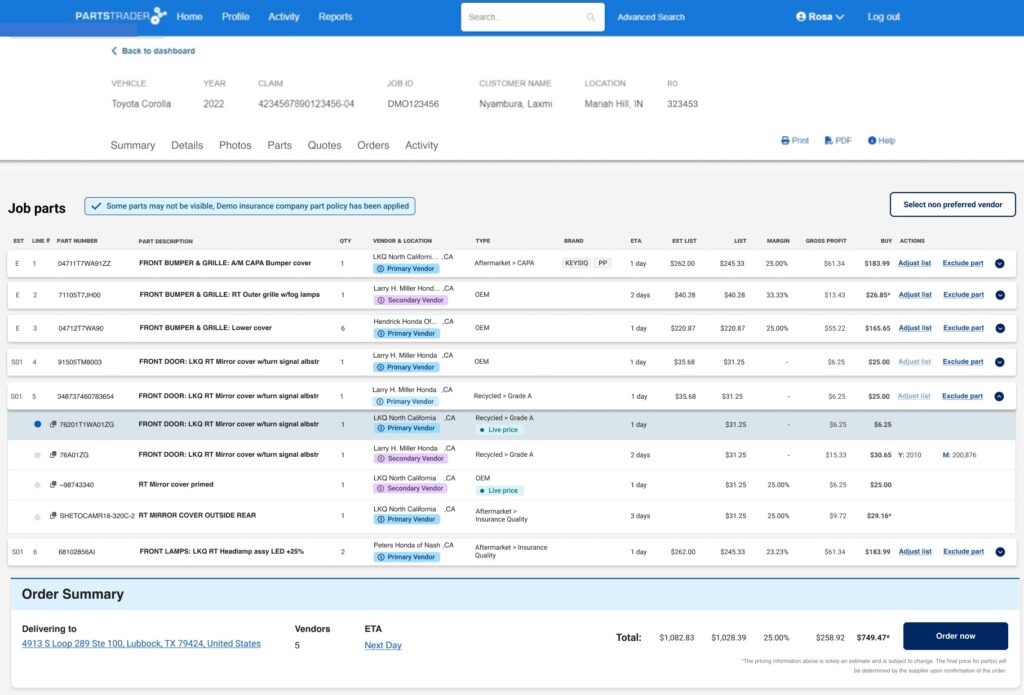
-Trust and Reliability: Order directly from the vendors you trust the most. Your preferred vendor network makes deliveries reliable and your repairs predictable.  

-Real-time Pricing and Availability: Compare dynamic and competitive options in real-time from your preferred network of Alternate suppliers.  

-Simplified Workflow: Designed to rapidly compare and select the best part options from preferred OEM and Alternate vendors all on one screen.  
Click to enlarge image

ONE SYSTEM TO MEET YOUR PARTS ORDERING NEEDS

We recognize smaller jobs can be incentivized differently, often with the goal of reducing cycle times, which helps drive better customer satisfaction. With Instant Ordering you now have the flexibility to prioritize speed. Parts are in the hands of technicians quicker and repaired cars to the customer faster. Our quoting system still delivers much better outcomes for larger repairs with the added benefit of making sure you stay aligned and compliant with any Carrier DRP requirements. PartsTrader provides you the best of both worlds, all in one system.  

What is an instant order?
An Instant Order allows you to select which vendor(s) to order your parts from and sends the order directly tip the selected vendor(s).


There is no quote process with an Instant Order- the order request is sent directly to the vendor for them to confirm. Depending on vendor type that may be automatic or manual.
What are preferred vendors?
A Preferred Vendor refers to a vendor with whom your Parts Management Team established an agreement to provide parts to your shop at a mutually agreed-upon discount.

PartsTrader calculates the buy price based on this discount.
How do Preferred Vendors differ from my existing preferred vendors?
Preferred Vendors, organized by your parts management team into primary and secondary categories, are distinct from your existing Preferred Vendor for this reason. When placing an order, the default selection will be the primary Preferred Vendor.
I don’t see a vendor that I commonly use.
The Preferred Vendors list is managed by the Regional Parts Team. To make changes to the Preferred Vendors please talk to your manager.
Can I order from a non-preferred vendor?
Yes, you can. However, the benefit of using a Preferred Vendor is the part margin has already been agreed with the vendor by your Regional Parts Team.
How do the selections I make in PartsTrader update in my estimating software?
All parts ordered in PartsTrader can be set to automatically export to your estimating software, CCC. This includes updating any changes to the part type or price.
When should I send an instant order?
Instant orders should be used for Express Repair jobs.

Where your DRP relationship requires you to use PartsTrader you will need to use the quote process.
What pricing is live?
All our alternate pricing is sourced directly from the vendor at the time of the order and is indicated by a ‘live pricing’ status.
What happens if a vendor changes pricing and delivery details once i’ve placed a direct order?
If the vendor makes any change to pricing or delivery you will be notified via email to review
– If you would also like to be notified via text, please call Customer Care.

Returns

IMPROVE YOUR RETURNS WORKFLOW

Say goodbye to the hassle of managing returns. With PartsTrader’s enhanced Returns feature, your shop gains a more efficient and organized workflow that keeps everything in one place and moving forward. No more back-and-forth phone calls or uncertainty—experience seamless returns management with full visibility at every step right on your dashboard.

HOW IT WORKS
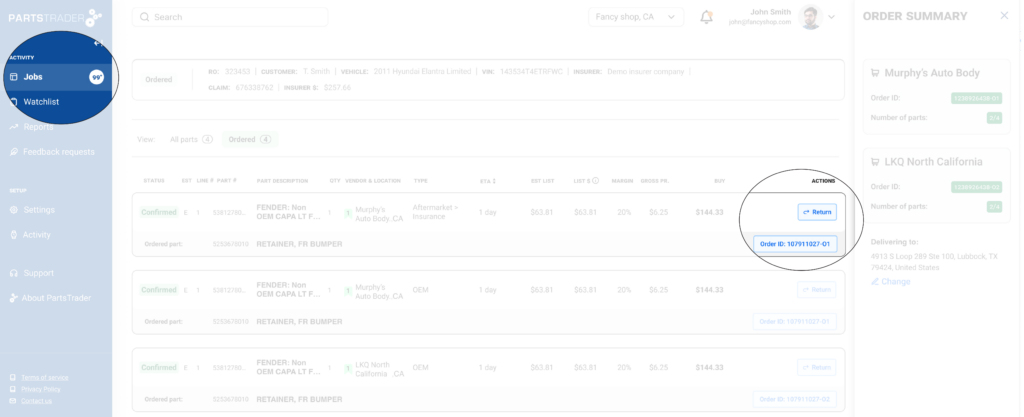
Start a return: Navigate to the Jobs Page and locate the job with the part you need to return. Click on the job, find the part, and choose Return from the options on the right.

Click to enlarge image

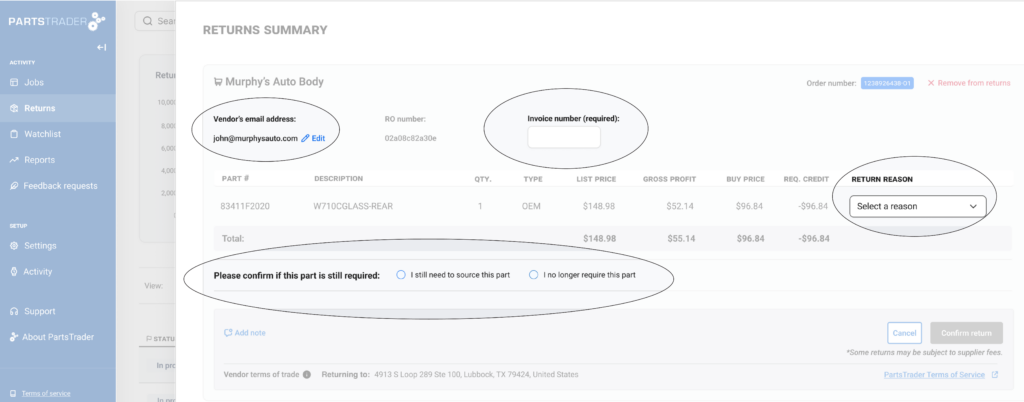
Returns Summary Page: After you select Returns under the part, you will be taken to a Returns Summary page, where you will input the return details such as the invoices number, reason for turn, if you need to still source this part and even your vendors email address.

Click to enlarge image

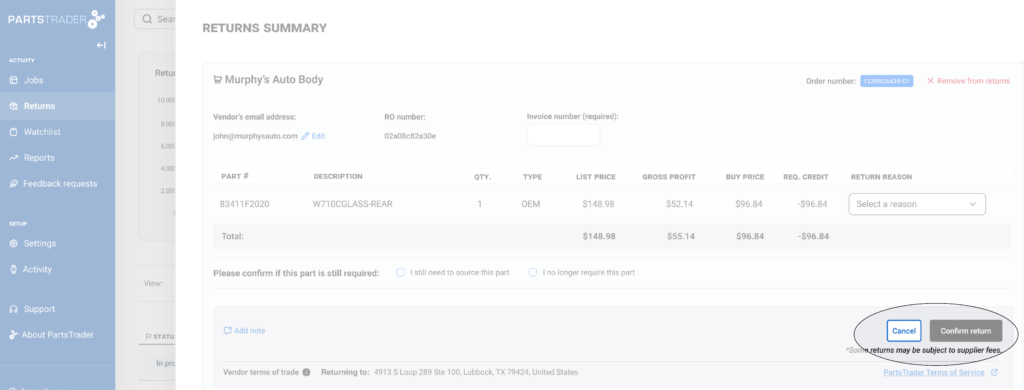
Submit the Return Request: Once all information is verified and input, click Confirm Return to submit the request. This will then take you to a Returns Summary.

Click to enlarge image

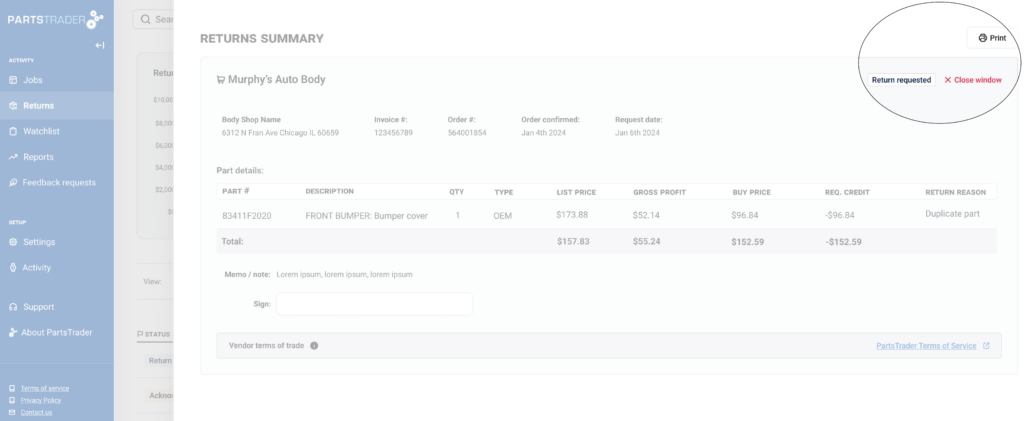
Print the Return Request: After the Return Request is submitted, a confirmation message will appear and you’ll have the option to print a return receipt for when the supplier picks up the part.

Click to enlarge image

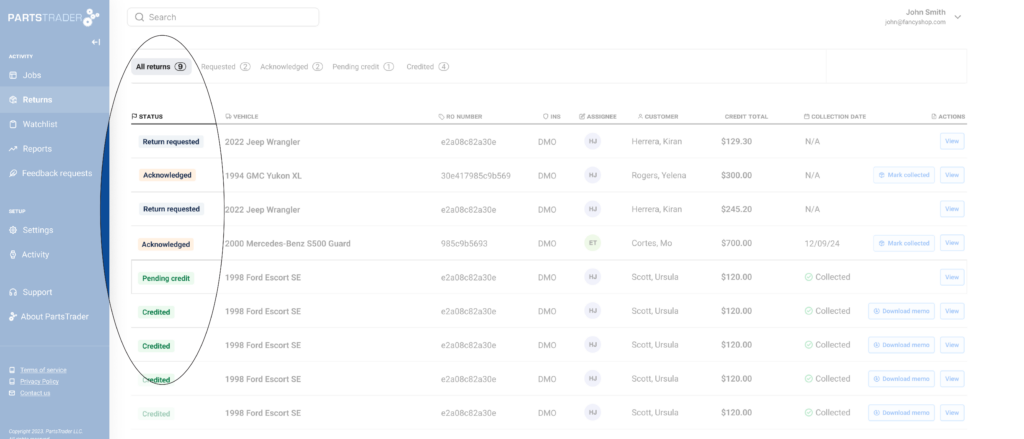
Real Time Updates: Your Supplier will be notified, and they will be able to accept the return, see the details and schedule a pick-up. These steps will update directly to your dashboard under a Job Status.

Acknowledge: Supplier has received an acknowledged your request

Collection Date Set: Supplier has provided a pickup date for the part

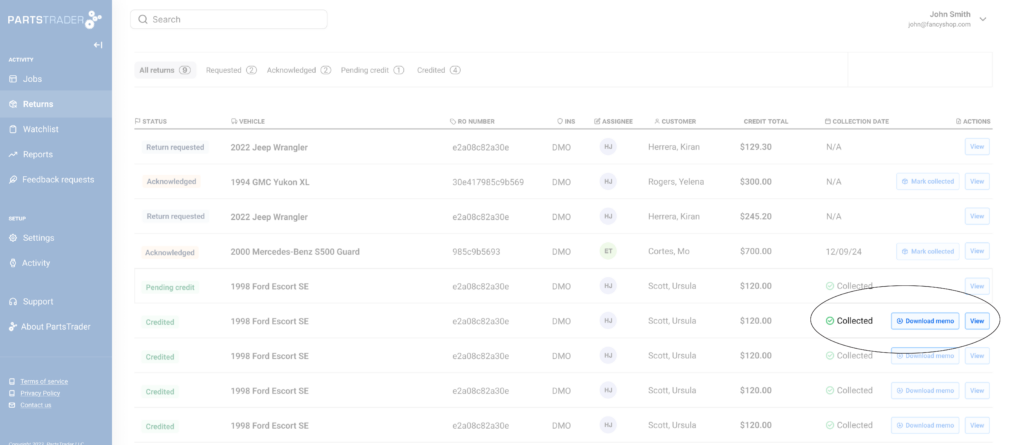
Pending Credit: The part has been collected and the supplier is processing your credit memo

Click to enlarge image

Mark Part as Collected: After the supplier picks up the part, log in to the dashboard and mark Collected. This will trigger the next steps for the supplier to provide you with a credit memo.

Click to enlarge image

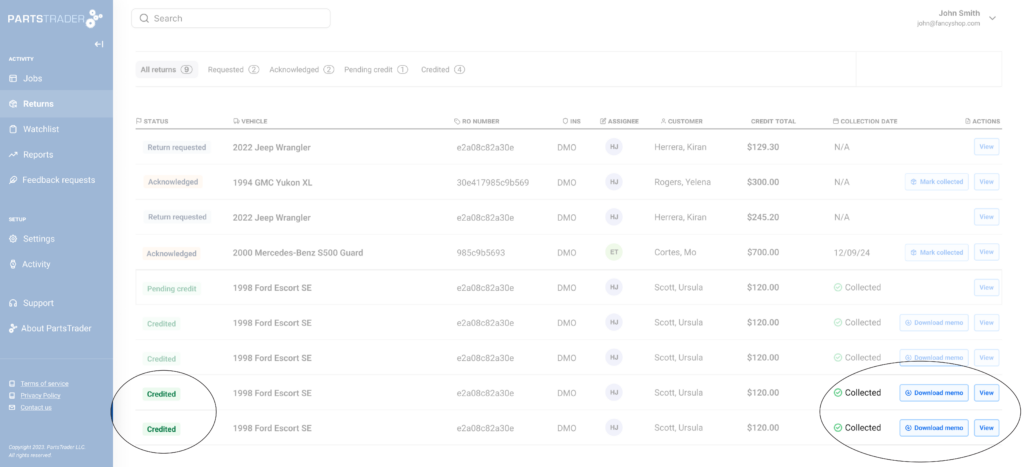
Download the credit memo: After the supplier uploads the credit memo, the status updates to Credited. This will allow you to download the credit memo for your records and ensure your account is credited.

Click to enlarge image

Pro Tip: Don’t forget to print the return receipt after submitting the request! It ensures a smooth handoff when the supplier picks up the part.

The new Returns Feature simplifies every step of the returns process, from initiation the return to getting a credit memo, all within the PartsTrader platform. With up to date tracking and end-to-end visibility, managing your returns is more organized and efficient

WANT TO KNOW MORE? GET IN TOUCH 

Talk to one of our specialists for a demonstration (855) 932-7278 

Organize training or have this enabled: [email protected] 

Updated on January 22, 2025