
Password Reset Guide
Overview:
Ensuring the security of your password is essential. This guide will provide comprehensive instructions on creating, changing, and recovering your password efficiently.
- Password Requirements
- Best Practices for Passwords
- How to Change Passwords
- Forgot Password
- Lockout for Too Many Failed Login Attempts
Procedure:
Password Requirements
To keep your account secure, here are the rules for creating a strong password:
- Must not be any of your previous five (5) passwords
- Must be at least eight (8) characters long
- Can’t contain three (3) consecutive identical characters, e.g. aaa or 111
- Can’t contain three (3) sequential characters, e.g. abc, cba, 123, or 321
- Can’t contain these words: password, PartsTrader, your first name, your last name, your company name, or your login name
Examples:
- ✅ Meets Requirements: P@rtStr8dr!
- ❌ Does Not Meet Requirements: password123
Best Practices for Passwords
- Use a mix of characters: Combine letters, numbers, and special characters.
- Avoid common words and sequences: Don’t use easily guessable information.
- Change passwords regularly: Update your password periodically to enhance security.
- Use unique passwords: Don’t reuse passwords across multiple sites.
How to Change Passwords
Standard Users:
- Log in to your account.
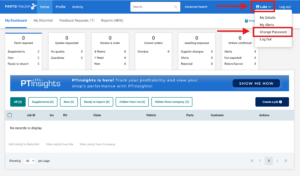
- Once on your Dashboard, click your Name in the top right corner of the screen.
- Select Change Password.
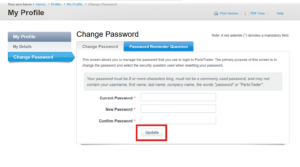
- Enter your current password, then your new password.
- Confirm your new password and save the changes.
User Managers:
- Log in to your account.
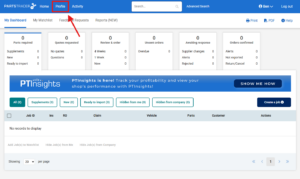
- Navigate to Profile at the top of your Dashboard.
- Click Reset User Password on the left-hand side of the screen.
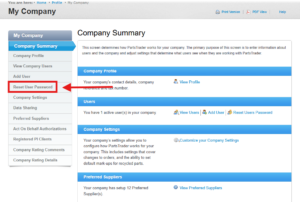
- Click the User dropdown menu and choose the user whose password you want to change.
- Click Reset User Password.
- The user will receive an email with instructions on resetting their password.
Forgot Password
- On the login page, click Forgot your password.
- Enter your username and click the Send Instructions button.
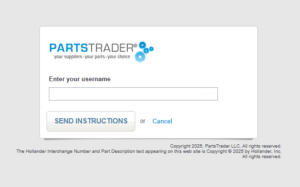
- Check your email for a link to answer your password reminder.
- Click the link and answer your password reminder.
- Enter a new password and save the changes.
Lockout for Too Many Failed Login Attempts
- If you enter the wrong password three times in a row, your account will be locked for fifteen (15) minutes.
- Wait for the specified lockout period to expire before trying again.
- If you need access sooner, please call PartsTrader Support at 855-932-7278, and we will assist you in resetting your password.